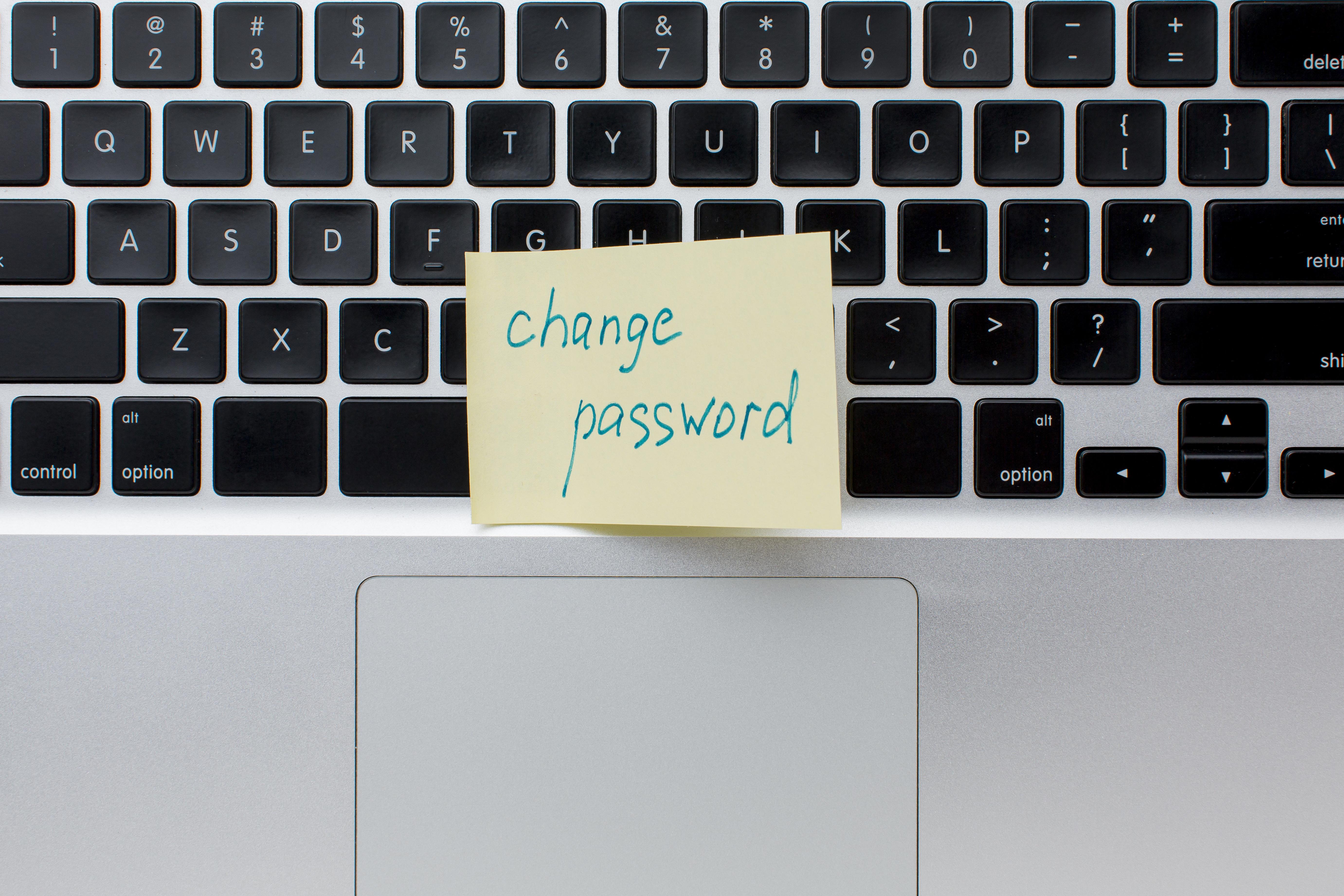
How to Set Up a Password Manager in 30 Minutes
In Part 1, we revealed the crisis: you're managing 255 passwords, 85% of people reuse them, and hackers exploit this every single day.
You can't fix this with memory tricks or spreadsheets. Your brain wasn't designed for it.
The solution? A password manager.
One encrypted vault. One master password. Everything else automated. Here's exactly how it works and how to set one up in 30 minutes.
⚡ Too overwhelmed to read? Skip to the 30-minute setup guide and start fixing this today.
Series Navigation
- Part 1: The Password Crisis
- Part 2: How Password Managers Fix Everything (You Are Here)
- Part 3: The Passwordless Future (Coming Soon)
What Password Managers Actually Do
Think of a password manager as a secure vault that lives on your devices.
Here's how it works:
- You create one master password (the only one you need to remember)
- The password manager generates strong, unique passwords for every account
- It automatically fills them in when you log in
- Everything is encrypted - even the company can't see your passwords
That's it. One password to remember. Everything else handled.
Why This Actually Works
No More Password Resets
Your password manager remembers everything. No more "Forgot password?" No more trying variations. No more locked accounts. No more anxiety.
Every Account Gets Real Security
Unique passwords everywhere. When Netflix gets hacked, only that password is compromised. Your bank, email, and work accounts stay completely safe.
Plus, you're protected from phishing. Password managers only auto-fill on the real website. Fake login page? It won't fill anything - instant warning sign that something's wrong.
You Get Your Life Back
- 17% lower breach rate compared to managing passwords manually
- 8.4 hours saved per year on password recovery alone
- 99.9% of automated attacks blocked when combined with MFA
- Zero mental energy spent worrying about passwords
The math is simple: One password manager. One master password. Everything else handled.
The Top 3 Password Managers
All three are trusted by millions. Pick the one that fits your needs.
Bottom line: All three eliminate password fatigue. Bitwarden if you're budget-conscious, 1Password if you want the easiest experience, Dashlane if you want premium all-in-one security.
Can't decide? Start with Bitwarden (it's free). You can always switch later - all three let you export your passwords.
Bitwarden - Best for Most People
Cost: Free (Premium: $10/year)
Why choose this:
- Completely free for basic use
- Open-source (security experts can audit the code)
- Works on all devices
- Family sharing available
Best for: Anyone who wants excellent security without paying
1Password - Best for Families
Cost: $2.99/month individual, $4.99/month family (up to 5 people)
Why choose this:
- Easiest to use - designed for non-technical people
- Excellent family sharing features
- Travel mode (hides sensitive data when crossing borders)
- Best customer support
Best for: Families or anyone who wants the smoothest experience
Dashlane - Premium All-in-One
Cost: $4.99/month individual
Why choose this:
- Built-in VPN (encrypts your internet connection)
- Dark web monitoring (alerts if your info appears in breaches)
- Identity theft insurance
Best for: People who want maximum protection in one package
Common Concerns (Answered Honestly)
"What if the password manager gets hacked?"
Major password managers use zero-knowledge encryption. Your passwords are encrypted on your device before they reach the cloud. Even if someone breaks into the servers, they get encrypted data they can't unlock without your master password.
1Password has operated for 18 years without a successful breach. LastPass was breached in 2022 - but attackers could only access accounts with weak master passwords. Use a strong one (20+ characters) and you're protected.
Create a strong master password using a passphrase:
Sunset-Elephant-Coffee-Mountain-2026 (35 characters)
Purple-Guitar-Ocean-Bicycle-Winter (33 characters)
Easy to remember. Impossible for computers to guess.
"What if I forget my master password?"
This is the one password you absolutely must remember. But there are backups:
- Write it on paper and store in a physical safe (not on your computer)
- Set up an emergency recovery kit when you first install (all managers offer this)
- Designate a trusted emergency contact who can help you recover access (available on 1Password and Dashlane)
Critical rule: Never store your master password in the password manager itself or anywhere digitally.
"Isn't this putting all my eggs in one basket?"
Yes - but that basket is a bank vault, not a wicker basket.
Your current situation: 255 eggs in paper bags with your address written on them, scattered across the internet.
With a password manager + MFA: All eggs in an encrypted steel vault that requires two separate keys to open.
The second key? Multi-factor authentication (MFA). Always enable it on your password manager. Even if someone guesses your master password, they can't get in without your phone.
The math is simple: One strong vault beats 255 weak bags.
30-Minute Setup Guide
Step 1: Choose and Install (5 minutes)
- Pick your password manager from the three above
- Download it on your computer
- Install the browser extension
- Download the mobile app
Step 2: Create Your Master Password (5 minutes)
Use a passphrase: 4-5 random words connected by dashes
Good examples:
- Sunset-Elephant-Coffee-Mountain-2026 (35 characters)
- Purple-Guitar-Ocean-Bicycle-Winter (33 characters)
Why this works:
- Easy to remember
- Impossible for computers to guess
- Meets all security requirements
Write it down and store it somewhere safe (not on your computer).
Step 3: Enable Multi-Factor Authentication (5 minutes)
This adds a second lock to your password manager.
Setup process:
- Go to your password manager's security settings
- Enable "Two-Factor Authentication" or "MFA"
- Download an authenticator app (Google Authenticator or Authy)
- Scan the QR code
- Save your backup codes
Why this matters: Even if someone guesses your master password, they can't get in without your phone.
Step 4: Migrate Your First 10 Accounts (15 minutes)
Start with your most important accounts:
Priority order:
- Primary email (controls everything else)
- Banking and financial accounts
- Work email
- Social media
- Shopping accounts
For each account:
- Log in normally (one last time)
- Go to account settings → Change password
- Click your password manager icon
- Generate a new password (accept the suggested 20+ character option)
- Save it
- The password manager will remember it from now on
That's it. You'll never need to remember these passwords again.
What Happens Next?
Over the next month, migrate accounts as you use them:
- Week 1: Your 10 most critical accounts (done above)
- Week 2: Accounts you use weekly
- Week 3: Accounts you use monthly
- Week 4: Everything else (or delete unused accounts)
No rush. Every account you migrate makes you more secure.
Enable MFA Everywhere (The Second Layer)
Password managers solve password fatigue. MFA blocks 99.9% of attacks.
Together? Nearly unbreakable.
Quick MFA Setup for Critical Accounts:
Gmail:
- Go to myaccount.google.com/security
- Click "2-Step Verification"
- Add your phone number
- Set up Google Authenticator app
Banking:
- Log in → Settings → Security → Two-Factor Authentication
- Follow your bank's prompts
Most other sites:
- Account Settings → Security → Look for "Two-Factor" or "MFA"
Pro tip: Authenticator apps (like Google Authenticator or Authy) are more secure than SMS codes.
Quick Note: Passkeys
Some websites now support passkeys - completely passwordless logins using your fingerprint or face. They're more secure than passwords and impossible to phish.
Available now on: Google, Microsoft, Apple, Amazon, PayPal, GitHub, and more. Check passkeys.directory for the full list.
We'll cover passkeys in detail in Part 3: How they work, how to set them up, and when passwords become truly optional. For now, focus on getting your password manager running - it's the foundation for everything else.
Your Next Steps
⚠️ If You Suspect a Breach (Do This First)
- Check haveibeenpwned.com to see if you've been compromised (2 minutes)
- Use SafePasswordGenerator.net to create new passwords for any compromised accounts (5 minutes)
- Change those passwords immediately
- Then follow the setup guide below
Everyone Else: Start Here (30 Minutes Total)
Step 1: Choose Your Password Manager (3 minutes)
- Bitwarden - Free, open-source, works everywhere
- 1Password - Easiest for families, best support
- Dashlane - Premium all-in-one with VPN and dark web monitoring
Step 2: Follow the 30-Minute Setup Guide (27 minutes)
Scroll up to Step 1 in the setup guide and follow each step. You'll create your master password, enable MFA, and migrate your first 10 critical accounts.
Step 3: Migrate Gradually Over the Next Month
- Week 1: Your top 10 critical accounts (done in Step 2)
- Week 2: Accounts you use weekly (social media, shopping sites)
- Week 3: Accounts you use monthly (utilities, subscriptions)
- Week 4: Everything else as you encounter them - or delete unused accounts
No rush. Every account you migrate makes you more secure. Even if you only fix your top 10 accounts today, you've eliminated 90% of your risk.
Can't start today? Bookmark this page. But remember: every day you wait, your reused passwords are vulnerable. One afternoon investment = permanent fix.
The Bottom Line
You're managing 255 passwords. Your brain can't do this. Nobody's can.
The solution:
- One password manager
- One master password
- Everything else automated
The results:
- Zero password resets
- Zero reused passwords
- Zero password-related anxiety
The time investment:
- 30 minutes to set up
- 5 minutes per month to maintain
This isn't about being perfect. It's about being practical.
Take one step today. Check if you've been breached at haveibeenpwned.com, then choose your password manager.
What's Next: The Passwordless Future
Part 3 explores:
- When passwords become truly optional
- How biometric authentication is evolving
- What decentralized identity means for you
- How businesses are eliminating passwords entirely
The future is simpler AND more secure.
🚨 Take Action in the Next 30 Minutes
You just learned how to eliminate password fatigue forever. Here's what to do right now:
Step 1: Check Your Exposure (2 min)
→ Have I Been Pwned
Find out if your passwords are already compromised.
Step 2: Choose Your Password Manager (3 min)
Pick one:
Step 3: Set It Up (25 min)
Follow the 30-minute setup guide above. Start with your 10 most important accounts.
Can't start today? Bookmark this page. But every day you wait, you're vulnerable. One afternoon investment = permanent fix.
📚 Continue the Series
✓ Part 1: The Password Crisis - 255 passwords per person
✓ Part 2: The Solution (You just finished this)
→ Part 3: The Passwordless Future - Passkeys, biometrics, and life after passwords
The future is simpler AND more secure. See what's next.