Is someone reading your WhatsApp messages? Here's how to check and what to do about the new linked device hack.
I write about password security for a living, so I've seen my share of clever attacks. But GhostPairing is the scariest one I've covered this year. No malware. No permissions. No technical exploitation. Just social engineering using WhatsApp's own features against you.
Security researchers at Gen Digital (the company behind Norton, Avast, and AVG) named this attack and published their findings this week. It was first spotted in Czechia, but the technique is spreading fast.
⚠️ Panic Check: Are You Already Compromised?
Do this right now before reading anything else:
- Open WhatsApp
- Tap Settings (gear icon on iPhone) or the three-dot menu (top right on Android)
- Tap Linked Devices
- Look at the list of connected browsers/devices
If you see a browser you don't recognize (like "Chrome (Linux)" or "Firefox (Windows)" and you don't use those), tap it and select Log Out immediately.
Not sure if a device is yours? Remove it anyway. You can always re-link your own devices later.
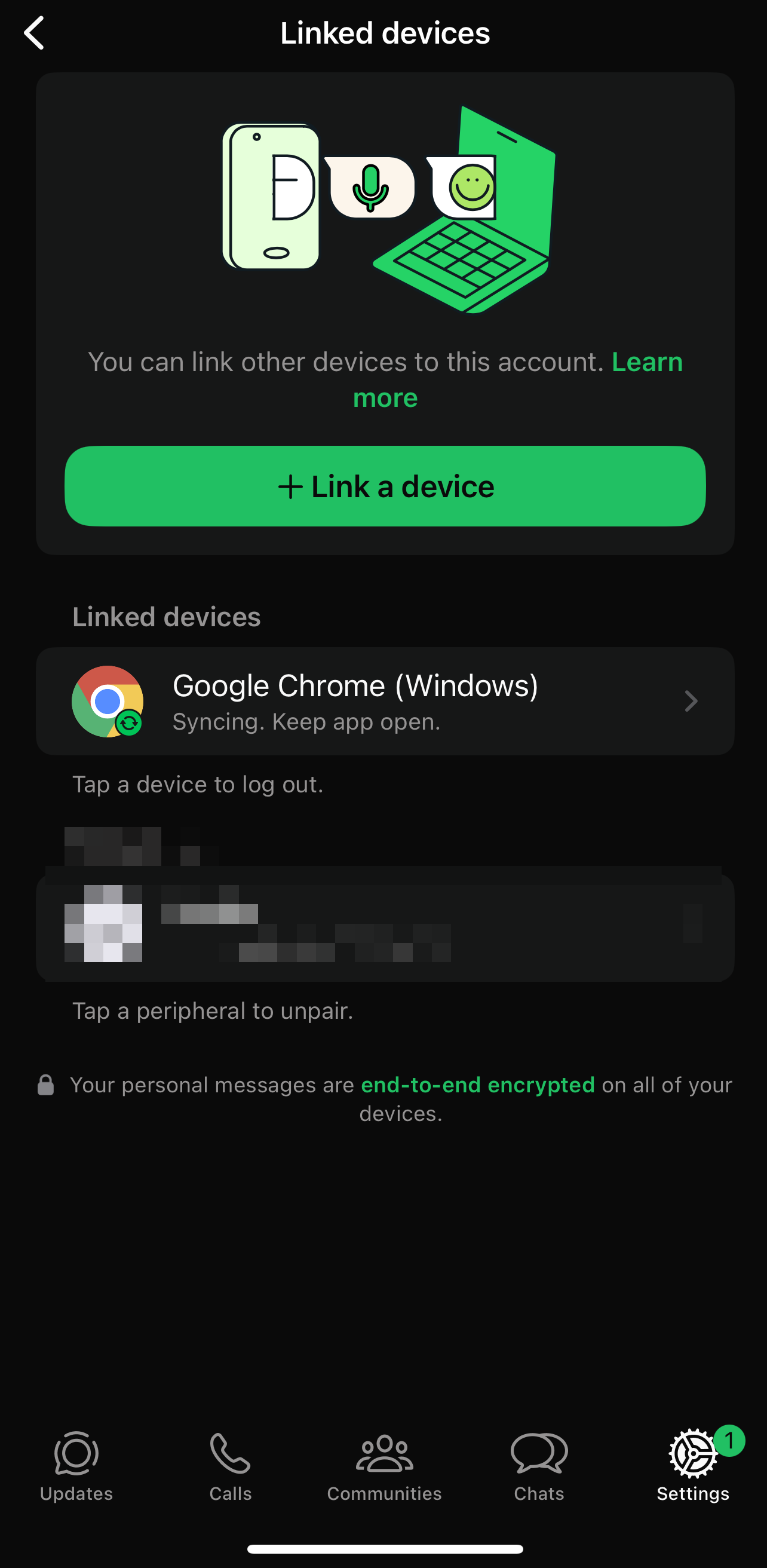
This is what the Linked Devices screen looks like. If you see a browser or device you don't recognize, tap it to remove it.
Signs Someone Might Be Reading Your WhatsApp Messages
Before we get into how this attack works, here are the warning signs that your account may already be compromised:
- You see unfamiliar devices in Settings → Linked Devices
- Contacts say they received strange messages from you that you didn't send
- You got a "Hey, I found your photo" message and clicked the link
- A website recently asked you to enter a WhatsApp verification code
- Messages show as read before you opened them
If any of these sound familiar, check your linked devices immediately using the steps above.
What Is the "I Found Your Photo" WhatsApp Scam?
GhostPairing is a WhatsApp account takeover scam that tricks you into linking an attacker's browser to your account. Unlike malware attacks, this one uses WhatsApp's legitimate "Link a Device" feature against you.
The attack starts with a message from someone you know. That's the first red flag you'll miss, because you trust your contacts.
The message is short and casual: "Hey, I just found your photo!" with a link that looks like it leads to Facebook. WhatsApp even renders a Facebook-style preview to make it look legitimate.
When you click, you land on a fake page that looks like a Facebook photo viewer. But before you can see the photo, you need to "verify" yourself. The page asks for your phone number.
Here's where it gets clever.
How the WhatsApp Linked Device Hack Works
The attackers take your phone number and use it to trigger WhatsApp's legitimate "Link a Device" feature. WhatsApp generates a pairing code. The attackers grab that code and display it on their fake page, telling you to enter it in WhatsApp to complete verification.
Most people see a pairing prompt in WhatsApp and think it's just another security check. They type in the code. Done.
What actually happened: you just linked the attacker's browser to your WhatsApp account. They now have the same access as if they logged into WhatsApp Web on their own computer... except it's YOUR account.
This is why security researchers call it "GhostPairing." The attacker's device becomes a ghost on your account, silently watching everything.
What Attackers Can Do Once They're In
A linked device can do almost everything you can do:
Read messages in real-time. Every conversation. Every group chat. Business discussions, personal conversations, sensitive information. All of it.
Download media. Photos, videos, voice notes. Anything shared in your chats is now accessible to them.
Send messages as you. This is how the scam spreads. They send the same "I found your photo" message to your contacts. Your friends and family trust messages from you, so they click. The cycle continues.
Access message history. Not just new messages. Your existing conversations sync to their device.
The scariest part? Your phone keeps working normally. You won't get logged out. You won't see any warning. Unless you specifically check your linked devices, you'll have no idea someone is reading your WhatsApp messages.
Step-by-Step: How to Remove a Hacked Device from WhatsApp
If you found a suspicious device or think you've been compromised, here's exactly what to do:
Step 1: Remove All Linked Devices
- Open WhatsApp
- Go to Settings (iPhone) or tap the three-dot menu (Android) → Linked Devices
- Tap each device in the list
- Select Log Out
- Repeat until the list is empty
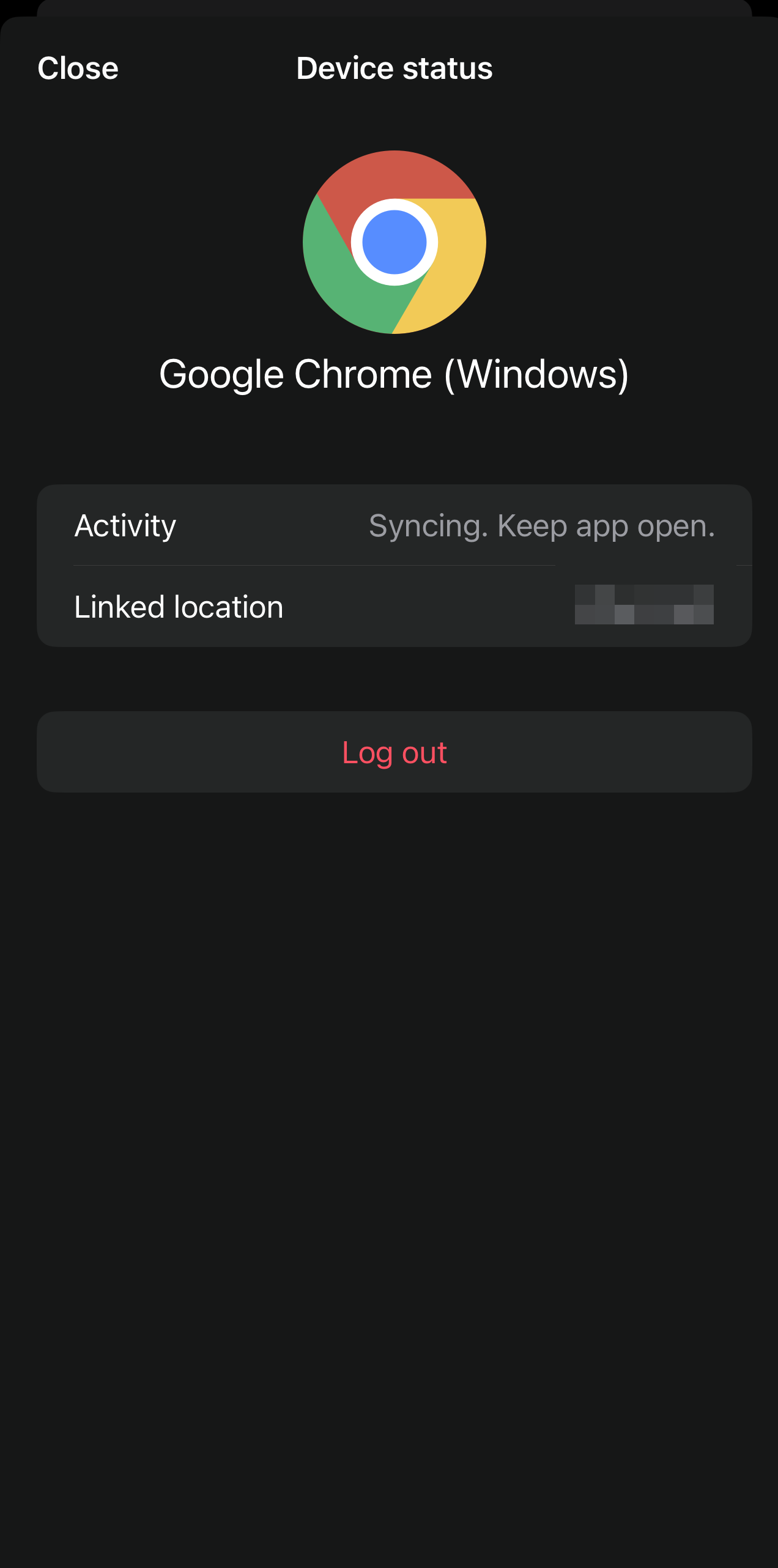
Tap any device, then hit "Log out" to remove it from your account.
Step 2: Warn Your Contacts
If you clicked the link and entered a code, assume the attacker has been sending messages as you. Post in your group chats or message close contacts directly:
"My WhatsApp may have been compromised. If you got a message from me about finding your photo, don't click it. It's a scam."
Step 3: Enable Two-Step Verification
This won't undo the current attack, but it adds protection against future attempts:
- Go to Settings → Account → Two-step verification
- Tap Turn on
- Create a 6-digit PIN
- Add a backup email address
Step 4: Check Your Email Security
Here's what most people miss: if attackers have been reading your WhatsApp messages, they may have seen password reset codes, account verification links, or sensitive information that helps them access other accounts.
Your email is especially vulnerable. If they get into your email, they can reset passwords for everything else.
Action items:
- Change your email password immediately (make it long and unique)
- Enable two-factor authentication on your email
- Check your email's "recent activity" or "security" section for unfamiliar logins
If you're still using the same password across multiple accounts, now is the time to fix that. A password manager like NordPass generates unique passwords for every account and remembers them for you. It's what I recommend to anyone serious about security. They have a free tier to try it out, and the premium version is a couple bucks a month.
Need help creating a strong password right now? Use my free password generator to create something uncrackable in seconds.
Step 5: Lock Down Your Connection
If you clicked that suspicious link, here's something most guides won't tell you: the fake page you visited may have logged your IP address and approximate location. Attackers now know roughly where you are and can use that info for more targeted scams.
This is where a VPN helps. It masks your real IP address so websites (including malicious ones) can't pinpoint your location or tie your activity back to you.
I use NordVPN because it's fast, works on all my devices, and has a kill switch that cuts your internet if the VPN drops (so you're never accidentally exposed). If you're cleaning up after a security scare, adding a VPN to your routine is solid insurance against whatever comes next.
How to Protect Yourself from WhatsApp Verification Code Scams
Be suspicious of "photo" links. If someone sends you a message saying they found your photo, call them. Actually pick up the phone and ask if they sent it. Don't reply via WhatsApp... their account might already be compromised.
Understand how verification actually works. No legitimate service asks you to enter a WhatsApp pairing code to view a photo. That's not a thing. If a website is asking for a code from your messaging app, something is wrong.
Check your linked devices regularly. Make it a habit. Once a week, take five seconds to look. The attack only works if you don't notice.
Never enter codes you didn't request. If WhatsApp shows a pairing prompt and you weren't actively trying to link a device, don't enter anything. Close it and check your linked devices.
Why This Attack Should Change How You Think About Security
GhostPairing is a reminder that the most dangerous attacks often don't involve sophisticated hacking. They involve understanding how people think and exploiting trust.
Your contacts trust messages from you. You trust verification prompts from apps you use every day. Attackers know this, and they're getting better at weaponizing that trust.
The same principle applies everywhere. While WhatsApp uses your phone number for authentication, most of your other accounts rely on passwords. If attackers get into your WhatsApp, they might see password reset confirmations or two-factor codes you've received. That information helps them target your email, your bank, your social media.
This is why password security still matters. A strong, unique password on your email account is your last line of defense when everything else gets compromised.
Your Next Steps
If you made it this far, you're already ahead of most people. Here's your action checklist:
- [ ] Check WhatsApp Linked Devices (do it now if you haven't)
- [ ] Remove any devices you don't recognize
- [ ] Warn your contacts if you clicked a suspicious link
- [ ] Enable WhatsApp two-step verification
- [ ] Change your email password to something strong and unique
- [ ] Get a password manager if you're reusing passwords across sites
- [ ] Consider a VPN if you clicked any suspicious links
- [ ] Share this article with someone who needs to see it
I built SafePasswordGenerator.net to help people create strong, unique passwords without the guesswork. It's free, no signup required, and I don't store anything you generate. If this article helped you, check it out and share it with someone who needs to hear this.
Disclosure: Some links in this article are affiliate links. If you sign up through them, I earn a small commission at no extra cost to you. I only recommend tools I'd actually use myself.