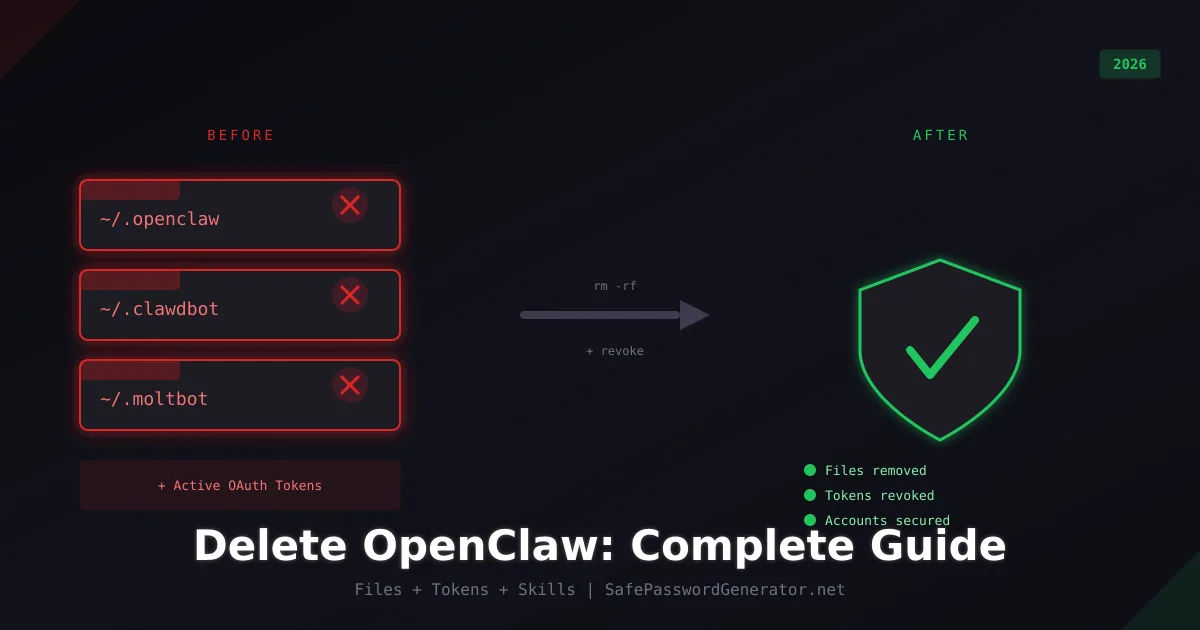
Decided OpenClaw isn't worth the risk? Smart move. But clicking "delete" isn't enough.
Because OpenClaw (and its predecessors Moltbot and Clawdbot) uses long-lived OAuth tokens, your accounts remain "open" even after the software is gone. Those tokens live on Google's servers, Slack's servers, and Discord's servers. Not your computer.
Here is how to actually close every door it opened by addressing the "Lethal Trifecta" of agent risks: Data Access, Untrusted Skills, and Persistent Communication.
Quick Answer:
- Stop the process: Kill openclaw via pkill or system service managers.
- Wipe local files: Delete the app folder and the three hidden config directories (~/.openclaw, ~/.clawdbot, ~/.moltbot).
- Revoke Tokens: Manually remove permissions in your Google, Slack, and Discord security settings.
- Clean Caches: Remove the ~/.molthub directory to delete any autonomous "skills."
The Official Uninstall Command
To completely uninstall OpenClaw, run openclaw uninstall --all --yes --non-interactive to remove the binary, then delete leftover config directories (~/.openclaw, ~/.clawdbot, ~/.moltbot, and ~/.molthub). Finally, revoke OAuth tokens in Google, Slack, Discord, and GitHub security settings. The official uninstall command alone does not remove credentials or cloud access tokens.
If OpenClaw is still installed and working, run this first. It handles most of the cleanup automatically:
# One-line complete uninstall
openclaw uninstall --all --yes --non-interactive
If you installed via npx (not globally), use:
npx -y openclaw uninstall --all --yes --non-interactiveIf you installed via npm globally:
npm uninstall -g openclawImportant: Even after running the official uninstall, you still need to complete the steps below. OX Security research confirmed that the official uninstall leaves credentials and configuration files behind. The steps below clean up what the uninstaller misses.
Before uninstalling, perform a full OpenClaw security audit to document any configurations worth preserving. If you need a replacement, consider migrating to NemoClaw rather than starting from scratch.
Not sure what to use instead? Review the top OpenClaw alternatives for 2026. For a full breakdown of the security differences, see our NemoClaw vs OpenClaw security comparison. Ready to switch? Follow our NemoClaw installation guide to get started.
Before You Start
Before you wipe your logs, check if you were compromised.
The Audit Command: If you haven't deleted the app yet, run:
openclaw onboard --auditThis will flag any active external "hooks" or exposed ports that you need to be aware of during cleanup.
Identify your rebrand version: Look for Clawdbot (Pre-Jan 27), Moltbot (Jan 27-29), or OpenClaw (Current). You likely have folders for all three.
⚠️ CRITICAL: If Shodan shows your IP as "OpenClaw Control," or you see "Shadow Emails" in your Sent folder, skip to Section 4 immediately. Keep your logs for a few hours in case you need to trace the breach.
How to Uninstall OpenClaw on Mac
Mac installations create LaunchAgents that auto-restart OpenClaw. You need to remove these first, then clean up files.
Stop the Background Service
# Unload the LaunchAgent (stops the background process)
launchctl unload ~/Library/LaunchAgents/com.openclaw.gateway.plist
launchctl unload ~/Library/LaunchAgents/bot.molt.gateway.plist

# Disable it permanently (survives reboot)
launchctl disable gui/$(id -u)/com.openclaw.gateway
launchctl disable gui/$(id -u)/bot.molt.gateway

# Also check for legacy Clawdbot/Moltbot agents
launchctl unload ~/Library/LaunchAgents/com.clawdbot.gateway.plist 2>/dev/null
launchctl unload ~/Library/LaunchAgents/com.moltbot.gateway.plist 2>/dev/null
Delete LaunchAgent Files
# Remove all LaunchAgent plist files
rm -f ~/Library/LaunchAgents/com.openclaw.gateway.plist
rm -f ~/Library/LaunchAgents/bot.molt.gateway.plist
rm -f ~/Library/LaunchAgents/com.clawdbot.gateway.plist
rm -f ~/Library/LaunchAgents/com.moltbot.gateway.plist
Remove the Application and Config Files
# Remove the app
rm -rf /Applications/OpenClaw.app

# Remove all config directories (all three rebrand versions)
rm -rf ~/.openclaw ~/.clawdbot ~/.moltbot

# Remove Agent Skills cache
rm -rf ~/.molthub ~/molthub-cache ~/.local/share/openclaw/
Uninstall the CLI
# If installed via npm
npm uninstall -g openclaw
npm uninstall -g moltbot
npm uninstall -g clawdbot

# Verify removal
which openclaw  # Should return nothing
How to Uninstall OpenClaw on Windows
Windows installations may include background services and startup entries.
Stop the Background Process
# PowerShell: Kill all variants
Stop-Process -Name "openclaw" -Force -ErrorAction SilentlyContinue
Stop-Process -Name "moltbot" -Force -ErrorAction SilentlyContinue
Stop-Process -Name "clawdbot" -Force -ErrorAction SilentlyContinue
Remove Startup Entries
Open Task Manager → Startup tab. Look for OpenClaw, Moltbot, or Clawdbot. Right-click → Disable.
Also check the Windows Registry:
# Open Registry Editor and check:
# HKCU\Software\Microsoft\Windows\CurrentVersion\Run
# Look for openclaw, moltbot, or clawdbot entries
# Delete them
Delete Config Directories
# PowerShell: Remove all config directories
Remove-Item -Recurse -Force "$env:USERPROFILE\.openclaw" -ErrorAction SilentlyContinue
Remove-Item -Recurse -Force "$env:USERPROFILE\.clawdbot" -ErrorAction SilentlyContinue
Remove-Item -Recurse -Force "$env:USERPROFILE\.moltbot" -ErrorAction SilentlyContinue
Remove-Item -Recurse -Force "$env:USERPROFILE\.molthub" -ErrorAction SilentlyContinue
Remove-Item -Recurse -Force "$env:APPDATA\openclaw" -ErrorAction SilentlyContinue
Uninstall the CLI
# If installed via npm
npm uninstall -g openclaw
npm uninstall -g moltbot
npm uninstall -g clawdbot
How to Uninstall OpenClaw on Linux
Linux installations typically use systemd services or PM2 for the background process.
Stop and Disable the systemd Service
# Stop and disable the service
systemctl --user stop openclaw-gateway.service
systemctl --user disable openclaw-gateway.service

# Remove the service file
rm -f ~/.config/systemd/user/openclaw-gateway.service
systemctl --user daemon-reload

# Also check for system-level service
sudo systemctl stop openclaw 2>/dev/null
sudo systemctl disable openclaw 2>/dev/null
If Using PM2
pm2 delete openclaw
pm2 save
If Using Docker
docker stop openclaw && docker rm openclaw
docker volume prune
# Also remove the Docker image
docker rmi openclaw 2>/dev/null
Remove Config and Files
# Remove all config directories
rm -rf ~/.openclaw ~/.clawdbot ~/.moltbot
rm -rf ~/.molthub ~/molthub-cache ~/.local/share/openclaw/

# Uninstall CLI
npm uninstall -g openclaw
npm uninstall -g moltbot
npm uninstall -g clawdbot
Revoke Access Tokens (The Critical Step)
Deleting the app does NOT stop the access. The OAuth "handshake" lives in the cloud. You must manually break it.
| Service | Where to Revoke | What to Look For |
|---|---|---|
| myaccount.google.com/permissions | OpenClaw, Moltbot, or Clawdbot | |
| Slack | slack.com/apps/manage | Remove "OpenClaw" App |
| Discord | Settings → Authorized Apps | Deauthorize "OpenClaw" or "Clawd" |
| GitHub | github.com/settings/applications | Authorized OAuth Apps |
| Microsoft | account.live.com/consent/Manage | OpenClaw Permissions |
| Notion | Settings → My Connections | Disconnect OpenClaw |
Google Deep Dive
Google permissions are the most dangerous. OpenClaw often has "Full Access" to Gmail and Calendar.
Even after revoking the app, run a Google Security Checkup to ensure no secondary "shadow apps" were installed by the agent.
Check for Compromise
If your instance was exposed, check for these "Molt-Exposed" signs:
Shadow Emails: Check your Gmail Sent and Trash folders for messages you didn't write.
Moltbook Posts: Search for your username on Moltbook.com. Some exposed instances were posting autonomously to the agent-only network.
Shodan Check: Search your IP on Shodan.io. If it shows "OpenClaw Control," your instance was publicly accessible. Assume compromise.
Verify OpenClaw Is Completely Removed
Run these checks on any platform to confirm nothing was left behind:
# Check if the CLI still exists
which openclaw && echo "STILL INSTALLED" || echo "CLI removed"

# Check for config directories
ls -la ~/.openclaw ~/.clawdbot ~/.moltbot 2>/dev/null && echo "CONFIG DIRS STILL EXIST" || echo "Config dirs clean"

# Check for Molthub agent skills
ls -la ~/.molthub 2>/dev/null && echo "MOLTHUB STILL EXISTS" || echo "Molthub clean"

# Check for running processes
ps aux | grep -E "(openclaw|moltbot|clawdbot)" | grep -v grep && echo "PROCESS STILL RUNNING" || echo "No processes found"

# Mac: Check for LaunchAgents
ls ~/Library/LaunchAgents/*openclaw* ~/Library/LaunchAgents/*clawdbot* ~/Library/LaunchAgents/*molt* 2>/dev/null && echo "LAUNCHAGENTS STILL EXIST" || echo "LaunchAgents clean"

# Linux: Check for systemd services
systemctl --user list-units | grep -E "(openclaw|molt)" && echo "SERVICES STILL ACTIVE" || echo "Services clean"
If everything returns clean, OpenClaw is fully removed from your system. Now proceed to revoking OAuth tokens below, which is the step most people skip.
Secure Your Future
Now that the "Space Lobster" is gone, it's time to rotate your credentials.
1. Generate New Passwords
Any password OpenClaw had access to (including those in your browser or local .env files) is now compromised.
Action: Use our Password Generator to create unique, 16+ character replacements for every linked account.
2. Verify Your Strength
Already updated your passwords? Run them through our Password Checker to ensure they meet 2026 entropy standards.
3. Reset 2FA
If OpenClaw had access to your primary email, a hacker could have hijacked your session to bypass 2FA. Reset your 2FA Backup Codes and re-enroll your authenticator app.
Next Step: Secure Your Passwords
You've removed OpenClaw. Now rotate every password it had access to. Doing this manually is a nightmare. A password manager generates unique passwords and stores them securely so you never reuse credentials again. If you are also managing network access for guests or remote workers, our WiFi password generator creates WPA2 and WPA3 keys that resist offline brute-force attacks.
I use RoboForm to manage mine. It takes 5 minutes to set up and works across all devices.
Try RoboForm FreeAffiliate link. I may earn a commission at no extra cost to you.
What to Use Instead
Now that you've removed OpenClaw, you'll need alternatives for AI automation. We've compared the safest options:
- Claude Code - Best for developers (MCP protocol, sandboxed)
- n8n - Best for technical teams (self-hosted, HITL triggers)
- Zapier - Best for non-technical users (no shell access)
How to Remove ClawdBot After Uninstalling OpenClaw
ClawdBot is the background daemon OpenClaw installs to handle persistent agent tasks. It runs as a separate process and is not removed by npm uninstall -g openclaw. If ClawdBot is still appearing in Activity Monitor, Task Manager, or ps aux after uninstalling OpenClaw, use these commands.
Stop and remove ClawdBot on Mac
pkill -f clawdbot
launchctl unload ~/Library/LaunchAgents/com.openclaw.clawdbot.plist 2>/dev/null
rm -f ~/Library/LaunchAgents/com.openclaw.clawdbot.plist
rm -rf ~/.clawdbot
rm -rf ~/Library/Application\ Support/ClawdBot
Stop and remove ClawdBot on Windows (PowerShell)
Stop-Process -Name "clawdbot" -Force -ErrorAction SilentlyContinue
sc.exe stop ClawdBot 2>$null
sc.exe delete ClawdBot 2>$null
Remove-Item -Recurse -Force "$env:APPDATA\ClawdBot" -ErrorAction SilentlyContinue
Remove-Item -Recurse -Force "$env:USERPROFILE\.clawdbot" -ErrorAction SilentlyContinue
Stop and remove ClawdBot on Linux
pkill -f clawdbot
systemctl --user stop clawdbot 2>/dev/null
systemctl --user disable clawdbot 2>/dev/null
rm -f ~/.config/systemd/user/clawdbot.service
systemctl --user daemon-reload
rm -rf ~/.clawdbot
rm -rf ~/.config/clawdbot
Verify ClawdBot is gone
ps aux | grep clawdbot
which clawdbot 2>/dev/null
Both commands should return empty. If ClawdBot still appears, check for cron jobs with crontab -l | grep -i clawdbot and remove any entries found.
Troubleshooting: "Gateway Service Disabled" After Uninstall
The "gateway service disabled" message after uninstall usually means service definitions remain even though the main binary is gone. OpenClaw can leave residual launch entries and config references that still return disabled-state warnings.
On macOS, remove leftover LaunchAgents and LaunchDaemons related to OpenClaw, then reboot to clear cached service state. On Linux, remove old systemd unit files, run systemctl daemon-reload, and confirm no stale unit alias remains. On Windows, remove startup tasks or services still pointing to legacy gateway paths.
If the warning persists, clear residual configuration under ~/.openclaw and run status checks from a fresh shell session. This resolves most post-uninstall gateway warnings caused by stale metadata.
Frequently Asked Questions
What is the openclaw uninstall command?
The official command is openclaw uninstall --all --yes --non-interactive. If you installed via npx, use npx -y openclaw uninstall --all --yes --non-interactive. However, this command alone does not remove OAuth tokens or all configuration files. Follow the complete guide above to fully remove OpenClaw.
How do I stop OpenClaw from running in the background?
On Mac, unload the LaunchAgent: launchctl unload ~/Library/LaunchAgents/com.openclaw.gateway.plist. On Linux, stop the systemd service: systemctl --user stop openclaw-gateway.service. On Windows, kill the process via Task Manager or PowerShell: Stop-Process -Name "openclaw" -Force.
Does npm uninstall -g openclaw remove everything?
No. Running npm uninstall -g openclaw only removes the CLI binary. It leaves behind config directories (~/.openclaw, ~/.clawdbot, ~/.moltbot), LaunchAgents on Mac, systemd services on Linux, OAuth tokens on cloud providers, and Agent Skills in ~/.molthub. You must clean these up manually.
How do I uninstall OpenClaw profiles?
If you used profiles (--profile flag or OPENCLAW_PROFILE environment variable), each profile has its own state directory at ~/.openclaw-<profile>. Repeat the file cleanup steps for each profile directory. On Mac, also check for profile-specific LaunchAgents named bot.molt.<profile>.
What is the difference between OpenClaw and Moltbot?
Same software. It was renamed twice in late January 2026 due to trademark pressure from Anthropic.
Is my data safe after uninstalling?
Only if you revoke the OAuth tokens. Otherwise, the agent's "keys" still work on the cloud providers' servers.
How do I know if my OpenClaw was hacked?
Check for emails you didn't send, calendar invites you didn't create, or unfamiliar OAuth apps in your Google permissions. Search your IP on Shodan.io. If it shows "OpenClaw Control," your instance was exposed.
What are Agent Skills and why should I delete them?
Agent Skills are third-party scripts that OpenClaw downloads via Molthub. These can contain auto-updating code that persists after uninstalling the main application. Delete ~/.molthub and related cache folders to remove them completely.
How do I uninstall ClawdBot?
ClawdBot is OpenClaw's background daemon and is not removed by the standard OpenClaw uninstall. Stop it with pkill -f clawdbot then remove the LaunchAgent on Mac, the Windows service via PowerShell, or the systemd unit on Linux. Full platform-specific commands are in the ClawdBot removal section above.
For the full breakdown of OpenClaw security vulnerabilities, read our complete guide: OpenClaw Security Risks: What You Need to Know
Once you have removed OpenClaw from your devices, consider choosing more secure authentication methods like passkeys and token binding to prevent future account compromises.
T.O. Mercer | SafePasswordGenerator.net